If you're a blogger, you've probably spent hours perfecting your Pinterest strategy…
Researching keywords on PinClicks. Designing pins. Building niche boards. You know… the norm.
But here's something most creators completely overlook…
Your website is one of the most powerful Pinterest growth tools you have. Seriously!
Every day, readers land on your posts, scroll through your images, and fall in love with your content. Some of them would happily save your images to their Pinterest boards.
The problem? Most websites make that really hard to do.
And every save you miss is a free pin, a free pathway back to your site, and a free signal to Pinterest that your content is worth showing to more people.
In this guide, I'll show you exactly why saves from your website matter so much, the hidden problem costing most bloggers saves every single day, and the step-by-step strategy to turn your blog into a Pinterest growth engine.
Why Saves From Your Website Matter More Than You Think
To understand why on-site saves are so valuable, you need to remember how Pinterest's system actually works.
Pinterest sees content as a massive network of Pins and Boards connected to each other. Every time a Pin gets saved to a Board, a new pathway is created in that network.
I know that sounds technical, but stick with me…
Here's what this means in simple terms:
When a reader saves an image from your blog post, they create a brand new Pin that links back to your post. That Pin lands on their board, which already has a name and a topic. That board gives Pinterest even more context about what your content is about.
So one save from your website does three things at once:
- It creates a new Pin that links directly to your post
- It connects your content to a new board (and a new topic signal)
- It tells Pinterest a real person found your content worth saving
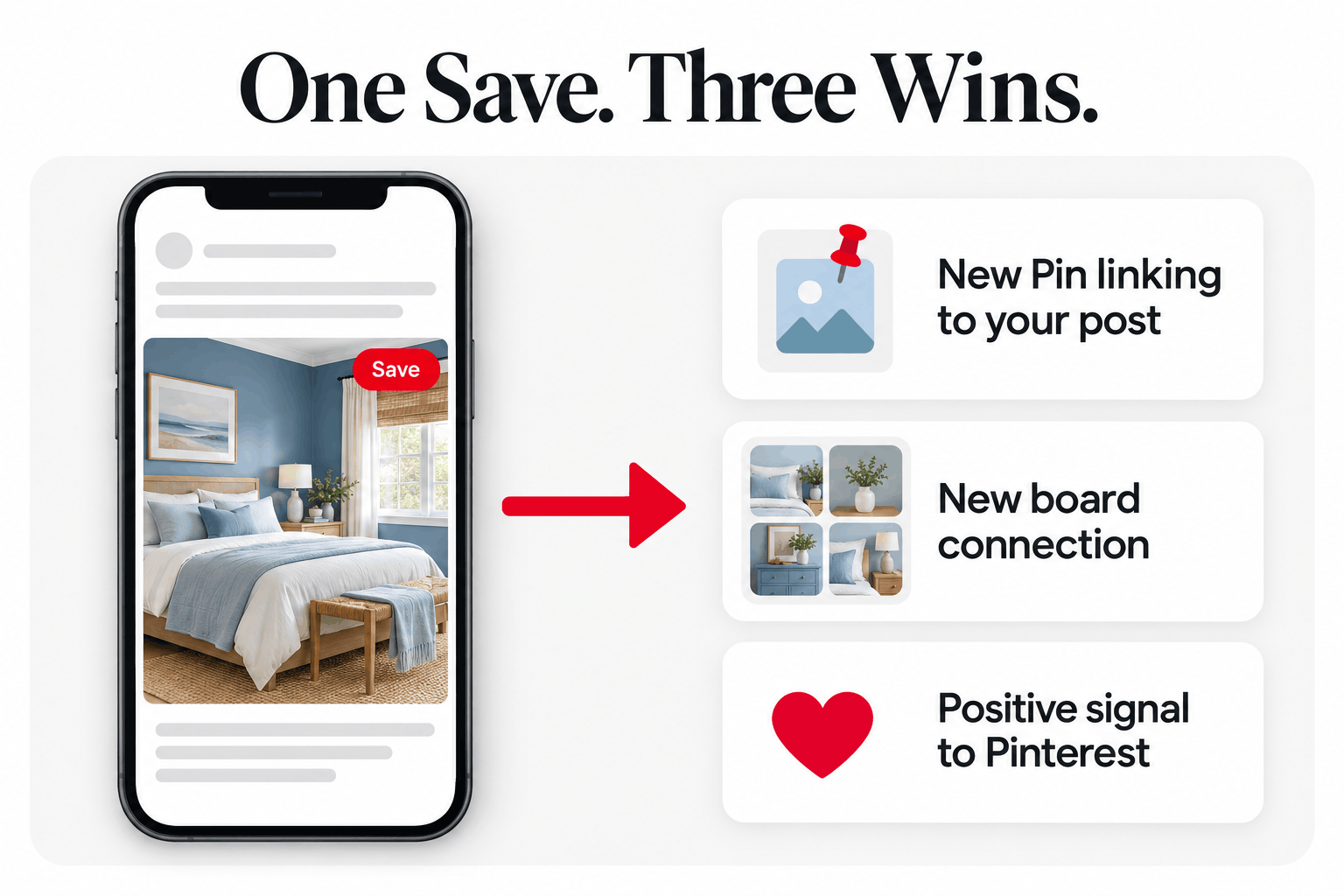
Think of it like this…
If a reader saves your "Blue Bedroom Decor Ideas" image to their board called "Master Bedroom Inspiration," Pinterest now has a new pathway connecting your post to bedroom inspiration content. That's distribution you didn't have to create yourself.
And remember, saves are one of the strongest positive signals Pinterest looks at when deciding what to show people. A save means someone liked your content enough to keep it. (Want to see all the ways your website affects rankings? Read how your blog can help your pins rank higher on Pinterest search.)
The Hidden Problem Costing You Saves Every Day
Here's where most bloggers are losing saves without even knowing it…
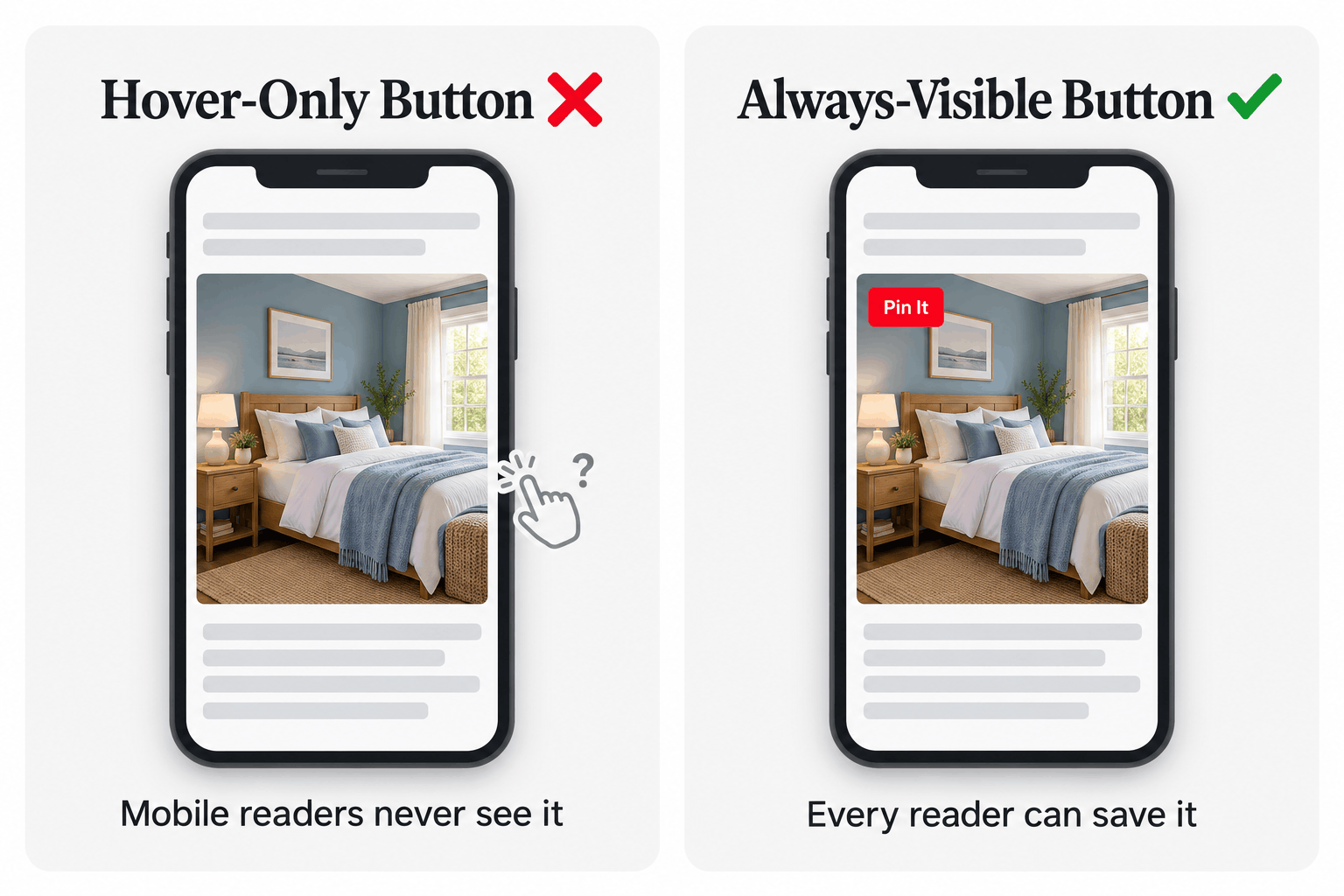
Many Pinterest plugins only show the "Pin It" button when someone hovers their mouse over an image.
That works fine on a desktop computer.
But on a phone? There's no mouse. There's no hover.
So the button never shows up.
And for most bloggers, the majority of their readers are on mobile. (If you're not sure about your site, check your analytics. Odds are, mobile is your biggest audience.)
That means your biggest group of readers may never see an easy way to save your images to Pinterest.
They'd have to take a screenshot, open the Pinterest app, and upload it themselves. Most people won't bother.
And even if they do, that screenshot pin won't link back to your website.
Your Step-by-Step Strategy to Get More Pinterest Saves
Now that you know what's at stake, let's fix it.
Step 1: Make Your Pin Buttons Always Visible
The single biggest change you can make is to stop hiding your pin buttons.
When a "Pin It" button is always visible on your images, every reader sees it, whether they're on a phone, tablet, or computer.
This is exactly why we built PinnerPress.
Unlike other plugins that hide pin buttons on mobile, PinnerPress keeps them visible on every device. It automatically adds pin buttons to all the images on your site, and it works with any WordPress theme. (See how it stacks up against Hubbub, Tasty Pins, and Easy Social Share.)
You can customize:
- The button style
- The button position on your images
- Which images show a button and which don't
No coding required. Setup takes about five minutes.
Step 2: Add Eye-Catching Image Banners
Sometimes readers need a little extra nudge…
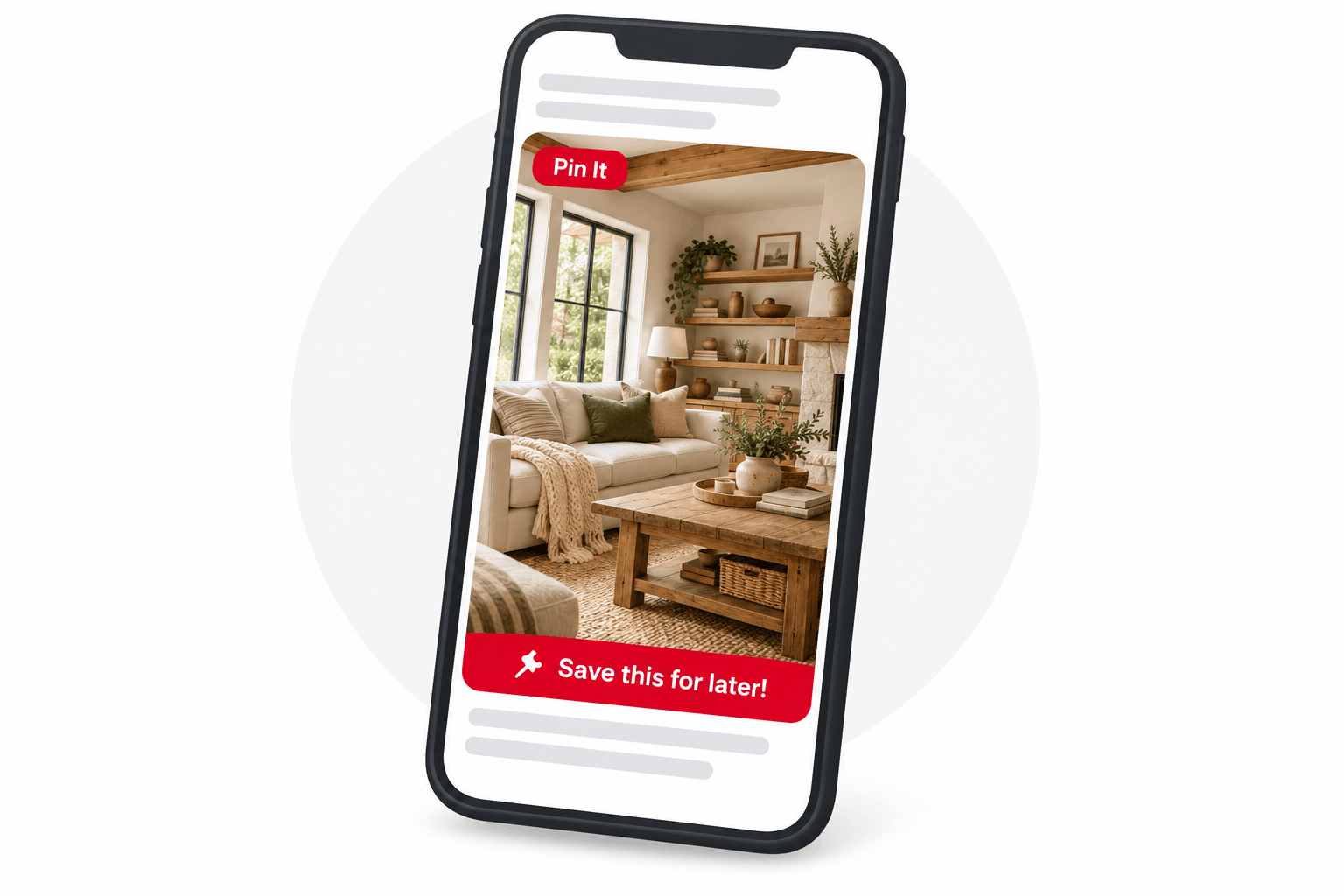
An image banner is a small overlay at the bottom of your image that encourages readers to save it. Something like "Save this for later!" or "Pin this idea!"
Banners are especially helpful on mobile, where people scroll fast and can miss a small button.
With PinnerPress, you can customize the banner text and colors to match your brand, and place banners automatically or only on the images you choose.
Step 3: Write Pin-Ready Image Descriptions
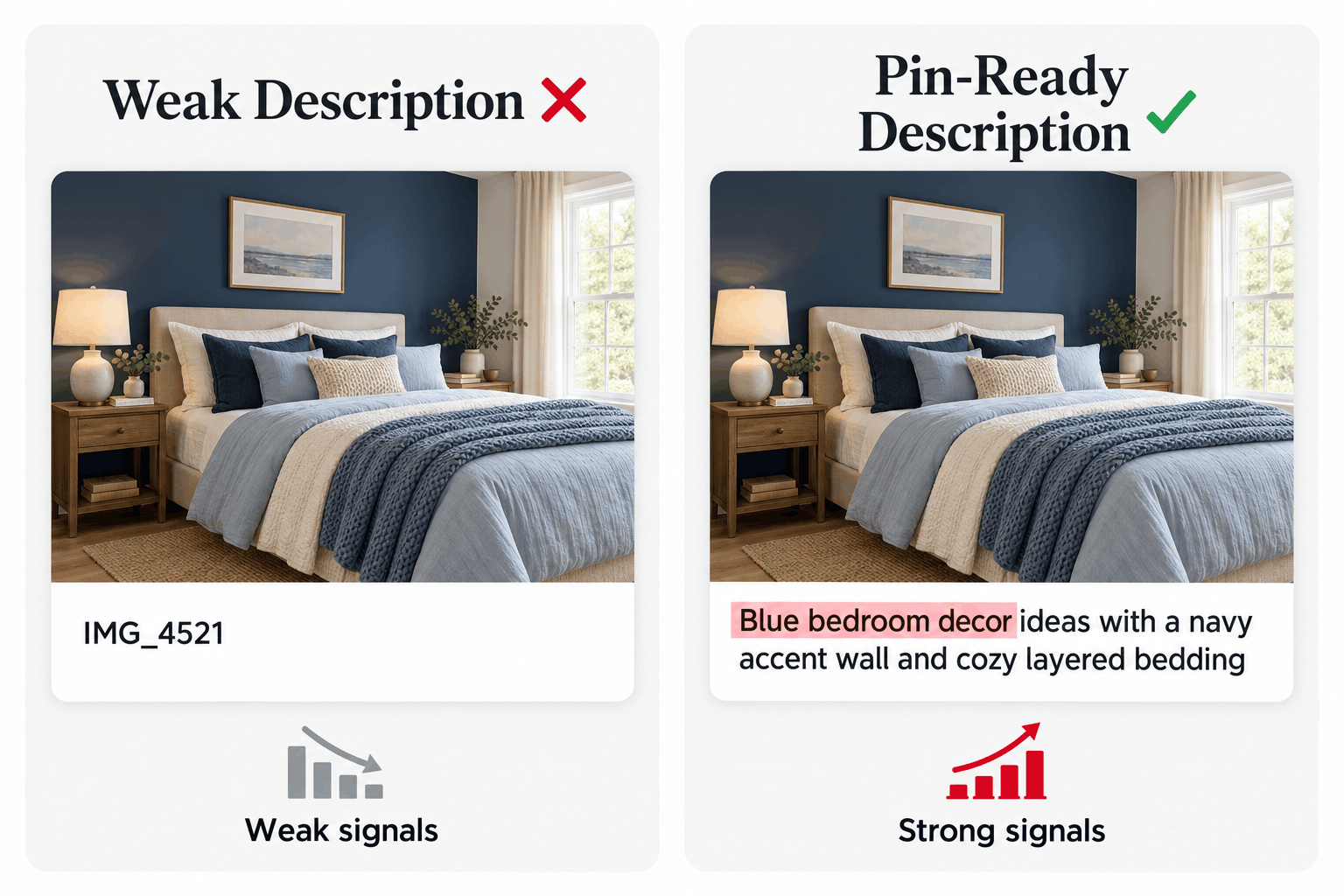
When someone saves an image from your website, Pinterest uses the description your site provides for that image.
This is a huge opportunity most bloggers waste…
If that description is empty or generic, like "IMG_4521" or "bedroom," that new pin starts its life with weak signals.
But if it includes clear, specific keywords that match how people search on Pinterest, every save from your site becomes a well-optimized pin automatically.
Here's how to nail it:
- Use the official keywords Pinterest recognizes. Tools like PinClicks let you see search volume and the interest keywords (annotations) Pinterest connects to each topic.
- Match your blog post's topic exactly. If your post is about blue bedroom decor, your description should be about blue bedroom decor, not "home inspiration."
- Keep it natural. Write for a person first, and include your keywords where they fit.
When you do this, you're making sure your pins have strong "topic cohesion," meaning the pin, the board it's saved to, and your blog post all point to the same topic. That's exactly what Pinterest looks for.
Step 4: Put Your Best Pin Image at the Top of Your Post
Here's a simple trick that can make a big difference…
Readers are most likely to save images they see early in your post.
If your best, most "pinnable" image is buried halfway down the page, a lot of readers will never reach it.
Move your strongest vertical pin image near the top of your post so more readers see it.
But how do you know which image is your best one?
That's where analytics come in…